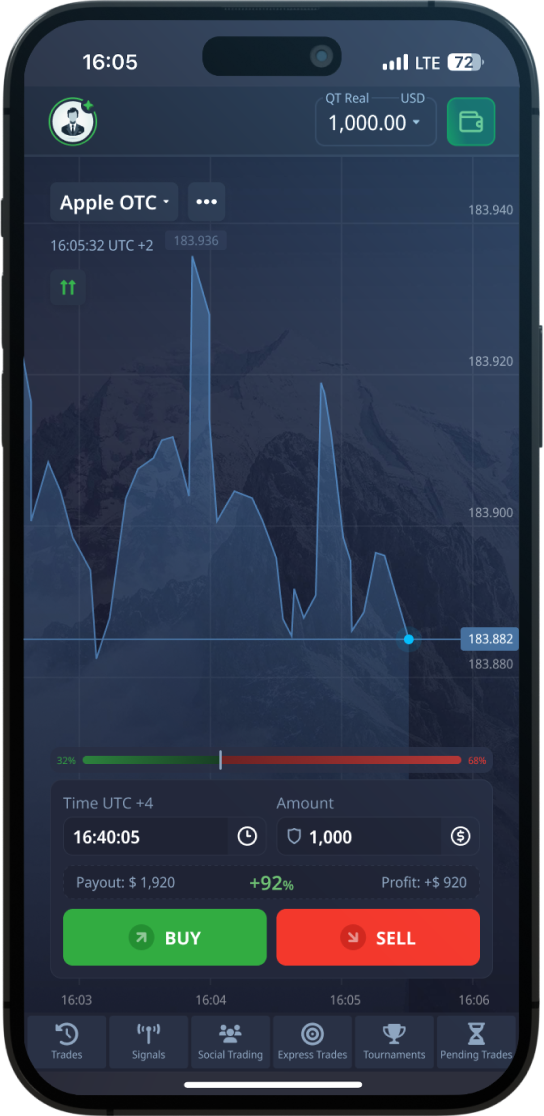
Trade on Android, iOS, or the web with the same account and balance everywhere. Pick your platform below, install in under a minute, and pick up exactly where you left off — your funds, history, and settings sync across every device.

Four ways to get Pocket Option running. Use the direct APK for the latest Android build, the official stores for automatic updates, or the web version when you can't install anything.
Everything the desktop platform offers, tuned for a touchscreen and a smaller display.
Open and manage trades on currencies, crypto, stocks, and commodities right from your phone. Charts, timeframes, and order controls are all built for touch, so placing a position takes a couple of taps.
Set alerts on the assets you follow and get a push notification the moment a level is hit. You stay aware of market moves without keeping the app open all day.
Top up or cash out using cards, e-wallets, and crypto including Bitcoin, all from the mobile cashier. Your payment methods and limits carry over from the web version.
Apply popular indicators like RSI, MACD, and moving averages, and draw trendlines straight on the chart. Your layouts save to your account and reappear on every device.
Practice with virtual funds before risking real money. The demo uses live prices, so you learn the interface and test ideas with zero financial risk.
Protect your account with a passcode, biometric unlock, and two-factor authentication. A locked session keeps your balance private even if your phone is left unattended.
Sideloading the direct APK takes about a minute. Follow these steps in order the first time you install.
Tap the Android download button to save the latest .apk to your device. Most phones drop it straight into the Downloads folder.
Open Settings and grant your browser or file manager permission to install unknown apps. Android only asks once, and you can switch it back off afterward.
Tap the APK in your notification shade or Downloads folder to launch the installer. Android will show you the permissions the app requests.
Press Install and wait a few seconds for it to finish. The Pocket Option icon then appears on your home screen and app drawer.
Open the app, log in with your existing account or register a new one, and your balance loads instantly. Switch to the demo account first if you want to look around.
Pocket Option is light on resources and runs well on older hardware. Check that your device clears these minimums before installing.
| Platform | Minimum OS | Storage | Connection |
|---|---|---|---|
| Android (APK / Play) | Android 6.0 or newer | ~60 MB free | Stable Wi-Fi or mobile data |
| iOS (iPhone / iPad) | iOS 13.0 or newer | ~80 MB free | Stable Wi-Fi or mobile data |
| Web platform | Any modern browser | No install required | Broadband recommended |
| Desktop sync | Windows / macOS / Linux | Browser-based | Same login across devices |
The mobile app puts the full trading platform in your pocket, so you are not tied to a desktop to watch a position or react to a price move. The interface is rebuilt for a touchscreen — charts pinch to zoom, orders open with a tap, and the asset list is easy to scroll one-handed. Because your account is the same everywhere, you can start an analysis on the web in the morning and close a trade from your phone later that day without losing a thing.
The direct APK and the store versions are the same app — the difference is how you get updates and how new builds reach you. The APK is handy when the store listing is behind, restricted in your region, or you simply want the newest release first; you just re-download the file to update. Google Play and the App Store handle updates automatically and add an extra layer of platform scanning, which many users prefer for convenience. Pick whichever fits your situation, and only ever download the APK from the official source linked here to avoid tampered copies.
Yes, the app is completely free on Android, iOS, and the web. There is no charge to install it or to open an account. You only fund the account when you choose to trade with real money, and a free demo account lets you explore everything first.
The APK is the official Android build, identical to the Google Play version. It is safe as long as you download it from the official source linked on this page. Avoid third-party mirrors and modified APKs, since those can be tampered with and put your account at risk.
Yes, Android requires you to grant your browser or file manager one-time permission to install apps outside the Play Store. The system prompts you automatically during install. You can turn the permission off again afterward, and it does not affect any other app on your phone.
Absolutely. Your account, balance, trade history, and settings sync across every device automatically. Log in with the same email and password on mobile and on the web, and everything appears instantly. You can switch between devices mid-session without any extra setup.
Use the web platform instead — it opens in any modern browser with no installation required. The web version gives you the same trading terminal, charts, and cashier as the app. It is also a good fallback if you are on a work computer or a device where you can't install software.
Google Play and the App Store update the app automatically in the background. If you installed the APK directly, just download the latest file from the official source and install it over the existing version — your account stays intact. Keeping the app current ensures you have the newest features and security fixes.
The Pocket Option app is deliberately lightweight. The Android download lands at well under 100 MB, and after installation the app itself occupies a modest footprint on your device. That leaves plenty of room on entry-level phones, which matters if you are tight on internal storage. Over time, cached charts, instrument logos, and saved layouts grow the footprint slightly, but you can clear that cache from your device settings without losing your login or account history, since those live on the server rather than on the handset.
Day-to-day data use is also light compared with video or social apps. Streaming live quotes and a handful of price charts consumes only a few megabytes per hour of active use, so a session on mobile data rarely makes a dent in a typical monthly plan. The heaviest moments are the initial download and major updates, which is why many people grab those over Wi-Fi. Once the app is installed and up to date, you can trade comfortably on a cellular connection.
If you watch several charts at once, keep many indicators running, or leave the app open in the background for long stretches, expect both battery and data use to climb. Closing unused charts and turning off animations where the app allows it keeps things efficient. On older devices, freeing up a gigabyte or two of internal storage before installing helps the app run smoothly and update without errors.
Security starts with where you get the file. The Android package and the official store listings should come from the platform's own download buttons or from the verified Google Play and App Store pages, never from random forums, file-sharing sites, or links forwarded in chat. Repackaged APKs circulating elsewhere can be modified to steal credentials or inject ads, so treating the source as part of your security is the single most important habit. When in doubt, start from the official site and follow its links rather than searching blindly.
Once installed, the app supports the standard account protections you would expect. Use a strong, unique password and enable two-factor authentication so that a leaked password alone cannot open your account. On the phone itself, a screen lock plus the device's fingerprint or face unlock adds another layer, since anyone who picks up an unlocked phone could otherwise reach an open session. Avoid trading over open public Wi-Fi for anything sensitive, and log out on shared or borrowed devices.
Be alert to phishing aimed at app users. No legitimate message will ask for your full password, two-factor codes, or card details by email or chat, and download prompts that appear inside ads are a common trap. If a page pushes you to install an 'updated' version from outside the official channels, close it. Keeping your phone's operating system patched and the app itself current closes the security holes that attackers rely on most.
When you first open the app it may request a few permissions, and it helps to understand what each one does before you tap allow. Notification access lets the app alert you about price movements, expiring positions, and account messages, which is useful if you do not want to keep the screen open all day. Storage access is what enables installing or updating the Android package and saving exported files. The app should not need permissions unrelated to its function, so anything that feels out of place is worth questioning.
Push notifications are worth enabling for most people because timely alerts are one of the main reasons to trade from a phone in the first place. You stay aware of what matters without watching charts continuously. That said, the alerts are entirely under your control: you can mute categories you find noisy, set quiet hours through your phone's system settings, or switch them off completely if you prefer to check the app on your own schedule. Fine-tuning them early prevents notification fatigue later.
If you ever change your mind about a permission, your phone's app settings let you revoke or re-grant it at any time, independent of the app. Revoking notification access simply stops the alerts; revoking storage access may block future updates until you restore it. Reviewing the permission list occasionally is good hygiene and gives you a clear sense of exactly what the app can and cannot reach on your device.
How the main ways to get the app compare on key practical points.
| Method | Auto-updates | Setup step | Best for |
|---|---|---|---|
| Android APK | Manual or in-app | Allow install from this source once | Newest build, devices without Google Play |
| Google Play | Automatic | None beyond a normal install | Hands-off updates and store convenience |
| iOS App Store | Automatic | None beyond a normal install | iPhone and iPad users |
| Web (browser) | Always current | None, just sign in | Trying it out or shared computers |
No, an active internet connection is required for the app to function. It streams live prices, syncs your account, and processes everything on the server side, so there is no meaningful offline mode. You can use Wi-Fi or mobile data, and a stable connection gives the smoothest experience. If your signal drops, the app will reconnect and refresh quotes once you are back online.
Yes, the app runs on Android tablets and on iPad through the App Store, in addition to phones. The larger screen is comfortable for viewing charts and managing several instruments at once. The download and installation steps are the same as on a phone for each platform. If a tablet does not meet the minimum requirements, the browser-based web version remains a reliable fallback.
The mobile app is built for Android and iOS devices, and there is no official desktop installer. For computers, the recommended option is the web version, which runs in any modern browser without installing anything. Android emulators on a PC can technically load the app, but they are not officially supported and may behave inconsistently. For the most reliable desktop experience, sign in through the web platform.
Uninstalling works like any other app: press and hold the icon and choose remove, or delete it from your phone's app settings. This clears the app from your device but does not delete your account, which is stored on the server. To reinstall, download again from the same official source and sign back in with your existing credentials. Your balance and history will be exactly as you left them.
The most common cause is that permission to install from the current source has not been granted, so check that setting for your browser or file manager and try again. A partial or corrupted download can also block installation, in which case deleting the file and downloading it fresh usually fixes it. Make sure your Android version and free storage meet the minimum requirements. If an older copy is still installed, removing it first can clear the conflict.
Both connect to the same account and the same core trading features, so you can switch between them freely. The installed app adds conveniences like push notifications, biometric login, and smoother performance tuned for mobile hardware. The web version requires no installation and is handy on a shared or work computer. Choose whichever fits the device in front of you; your account stays in sync across all of them.
Many people install the Pocket Option app on a new phone after upgrading, or move from the web version to mobile for the first time. The good news is that nothing about your account is tied to a single device. Your balance, history, and settings live on Pocket Option's servers, so a fresh install simply pulls everything down once you sign in. There is no manual export, no backup file to copy, and no migration tool to run.
If you are replacing a lost or broken phone, you do not need the old device to recover access. Download the app on the new one, log in with the same email and password, and your full account appears as it was. The only thing that does not transfer automatically is your local app preferences such as chart layouts saved only on the old device, so it is worth spending a minute to re-check your display and notification settings after the first launch.
When you move from the website to the app, expect the layout to be reorganized rather than shrunk. Phone screens are narrow, so menus that sit side by side on a desktop are tucked behind tabs and icons on mobile. The features are the same, but it can take a session or two to learn where each tool now lives. Keep both versions installed for a while if that helps you adjust at your own pace.
A clean install is also the simplest fix when the app is acting strangely. Removing it and downloading a current copy clears out corrupted cache files and old code that an in-place update sometimes leaves behind.
A trading app that shows live prices is more demanding than a typical photo or messaging app, because it keeps a connection open and redraws charts as quotes change. On most modern phones this is comfortably within normal use, but if you leave the app open for hours with charts streaming, you will notice it using more battery than a static app would. Closing the app fully when you are done, rather than leaving it running in the background, is the easiest way to keep that in check.
Mobile data use depends mostly on how long you watch live charts and how often you refresh prices. Reading the markets for a few minutes here and there is light; staring at fast-moving charts for a long session pulls more data because the price feed updates continuously. If you are on a limited plan, prefer Wi-Fi for long sessions and rely on mobile data for quick check-ins and managing open positions.
Your phone's own settings have the final say over what the app may do in the background. Aggressive battery-saver modes can suspend the app, which means price alerts and other notifications may arrive late or not at all. If timely alerts matter to you, exclude the app from the strictest power-saving rules so it is allowed to stay active and deliver notifications on time.
None of this requires special tuning for most users. The defaults are sensible, and the app is built to behave like a normal foreground tool. The settings above only matter if you have a small data plan, an older battery, or a phone that is unusually aggressive about closing background apps.
The Pocket Option app supports a wide range of interface languages, and it usually picks one automatically based on your phone's system language. If it guesses wrong, or if you simply prefer a different language, you can change it in the app settings without reinstalling. The choice affects menus, labels, and help text, while product names and ticker symbols stay in their standard form.
Currency display and number formatting generally follow the conventions you would expect, and your account currency is set when you register rather than chosen per device. This matters when you switch phones: the same account keeps the same base currency everywhere you log in, so amounts read consistently across mobile and web. Do not expect a device-level setting to change the currency your balance is held in.
Every fresh install includes access to a practice mode funded with virtual money. This demo balance is the right place to learn where buttons are, test the install, and confirm that charts, orders, and notifications all behave before you commit any real funds. Switching between demo and real is a single toggle inside the app, and you can return to the demo at any time to try something risk-free.
Treat the demo as a permanent part of the app rather than a one-time tutorial. Whenever a new feature appears in an update, or you are unsure how an order type works, the practice mode lets you explore it without consequences. It is the safest answer to almost any how does this work question on the platform.
How the main ways to get the app differ in practice
| Source | Auto-updates | Best for | Watch out for |
|---|---|---|---|
| Google Play (Android) | Yes, automatic | Hands-off updates and simplest setup | May be unavailable in some regions |
| APK file (Android) | Manual, you reinstall | Devices without Play access | Only download from the official site |
| App Store (iOS) | Yes, automatic | iPhone and iPad users | Requires a compatible iOS version |
| Web version (any device) | Always current, nothing to install | Trying the platform or using a shared computer | Needs a live connection every time |
Yes. You can install Pocket Option on several devices and log in to the same account on each one. Your balance and history stay in sync because they are stored on the server, not the device. Just keep in mind that anyone with your login can access the account, so only install it on phones you control.
No. The app itself is completely free to download and install from every official source, and nothing is taken from your trading balance to get it. The only costs involved are any data charges from your mobile provider while downloading. Funding your account is a separate, optional step you control entirely.
No. The app and the web version share the same account, so logging in on mobile shows the same balance, history, and settings you already have. There is nothing to transfer or copy by hand. You can keep using the website and the app interchangeably whenever it suits you.
A trading app keeps a live connection open to stream current prices and redraw charts as they move, which is more active than a static app. Long sessions with fast-moving charts use the most battery and data. Closing the app when you are done and using Wi-Fi for long sessions keeps usage modest. Quick check-ins barely register.
Yes. The app usually matches your phone's system language automatically, but you can pick a different one in the settings menu at any time. The change applies right away and does not require reinstalling. Product names and ticker symbols stay in their standard form regardless of the language you choose.
Yes. Every install includes a practice mode funded with virtual money, which is ideal for learning the layout and confirming everything works after download. You switch between practice and real with a single toggle inside the app. You can return to the demo whenever you want to try a feature risk-free.
This is almost always your phone's battery-saver settings suspending the app in the background. Exclude Pocket Option from the strictest power-saving rules so it is allowed to stay active and deliver notifications on time. Also confirm that notification permission is granted in your system settings. After adjusting both, alerts should arrive promptly again.
When you open the app for the first time after downloading, you are taken straight to a sign-in screen rather than into trading. New users can create an account in the app, while existing users sign in with the same email and password they already use. The first launch also loads the latest quotes and chart data, so give it a few seconds on a slower connection before the interface feels fully responsive.
On Android, the very first open is when the system asks you to confirm any permissions the app needs, and you can decline most of them without breaking core functions. The app then drops you onto a default symbol with the standard chart layout, which you are free to change at any time. Nothing about the first session commits you to anything: you can explore, switch to the practice balance, and close the app without making a deposit.
It is worth taking a minute on this first run to set your interface language, confirm your time zone reads correctly on the chart, and check that price updates are streaming. If the screen looks frozen, a single pull-to-refresh or a quick close-and-reopen usually fixes it, because the issue is almost always the initial data sync rather than the download itself.
Because the platform is popular, lookalike listings and repackaged files circulate online, so a quick verification habit protects both your device and your account. The safest path is to start from the official download entry on this page or from the verified store listing, then confirm the developer name and the number of reviews look consistent with a major app rather than a brand-new upload with a handful of ratings. A genuine listing also shows a coherent update history instead of a single recent release.
If you obtained an APK, check that its file size is in the expected range and that it came from a source you trust rather than a random forum mirror or a shortened link in a message. Avoid any version that promises bonus features, unlocked rewards, or guaranteed results, since the real app makes no such claims and modified builds are a common way to slip in unwanted code. When in doubt, delete the file and download again from the source listed here.
After installing, the strongest signal that everything is legitimate is that you sign in on the same account that works on the web platform and your balance and history match exactly. If an installed app ever asks for details the official platform would never request, such as a separate payment outside the normal cashier, treat that as a red flag and remove it immediately.
App updates arrive in waves rather than all at once, so two people on the same phone model may see a new version on different days. Store-installed copies usually update automatically in the background if you have that setting enabled, while an APK you installed manually will not auto-update and needs a fresh download when a new build is released. Knowing which install type you have tells you whether to wait or to check for updates yourself.
Most updates are small and focus on fixes, performance, and minor feature tweaks, so they download quickly and rarely change where things live in the interface. Occasionally a larger release reorganizes a menu or adds a new tool, in which case a short look around the screen is all it takes to get oriented. Updates do not touch your account: your balance, history, and settings live on the server, not inside the app file.
If you ever feel an update made things worse, the issue is more often a leftover cache than the new version itself. Closing the app fully, reopening it, and signing in again clears most post-update quirks. Staying current matters because older builds can lose compatibility over time and may stop receiving the security and stability fixes that newer releases include.
How your chosen download method affects updates, setup, and day-to-day use.
| Install method | Auto-updates | Extra setup | Best for |
|---|---|---|---|
| Google Play | Yes, in the background | None beyond a standard install | Most Android users who want it simple |
| Android APK | No, re-download to update | Allow install from this source once | Devices without the store or newer builds |
| iOS App Store | Yes, in the background | None beyond a standard install | iPhone and iPad users |
| Web version | Always current, nothing to install | None | Trying the platform or using a shared device |
On a typical broadband or strong mobile connection, the download finishes in well under a minute because the app is fairly compact. Installation then takes only a few more seconds while the system unpacks the files. The slowest part is usually the first launch, when the app fetches live quotes and chart data. If a download stalls, a weak signal or low storage is the most common cause.
No, the app uses the same account system as the web platform, so existing users simply sign in with their current email and password. If you are brand new, you can register directly inside the app in a couple of steps. Either way, one account covers the app, the web version, and any other device you sign in on. Your balance and history stay in sync automatically.
No, downloading, installing, and opening the app are all free, and you are never charged to launch it. Funds only come into play if you choose to deposit and trade with real money later. You can explore the full interface and use the practice balance without spending anything. Any app that demands a payment just to open is not the genuine one.
Yes, the app is small enough that downloading over mobile data is usually quick and uses only a modest amount of your allowance. That said, store apps sometimes pause large downloads on cellular by default, so check that setting if a download will not start. For an APK, mobile data works fine as long as your plan allows it. Once installed, day-to-day use is light on data.
The core features are identical, but a tablet's larger screen gives charts and panels more room, so the layout can feel more spacious. You sign in with the same account on either device and everything stays in sync. Some tools that feel cramped on a small phone are easier to use on a tablet. There is no separate tablet version to download; the same app adapts to the screen size.
Start by fully closing the app and reopening it, since a one-off glitch on launch is the most common issue. If that fails, restart the device to clear memory, and make sure you have enough free storage. When the problem persists, uninstall and reinstall from the same official source to replace any damaged files. Your account is unaffected by a reinstall, so you will not lose anything.
Download the Pocket Option app for your device or open the web platform now. Practice on the free demo first, then switch to live whenever you're ready — your account works the same everywhere.
Download Now